
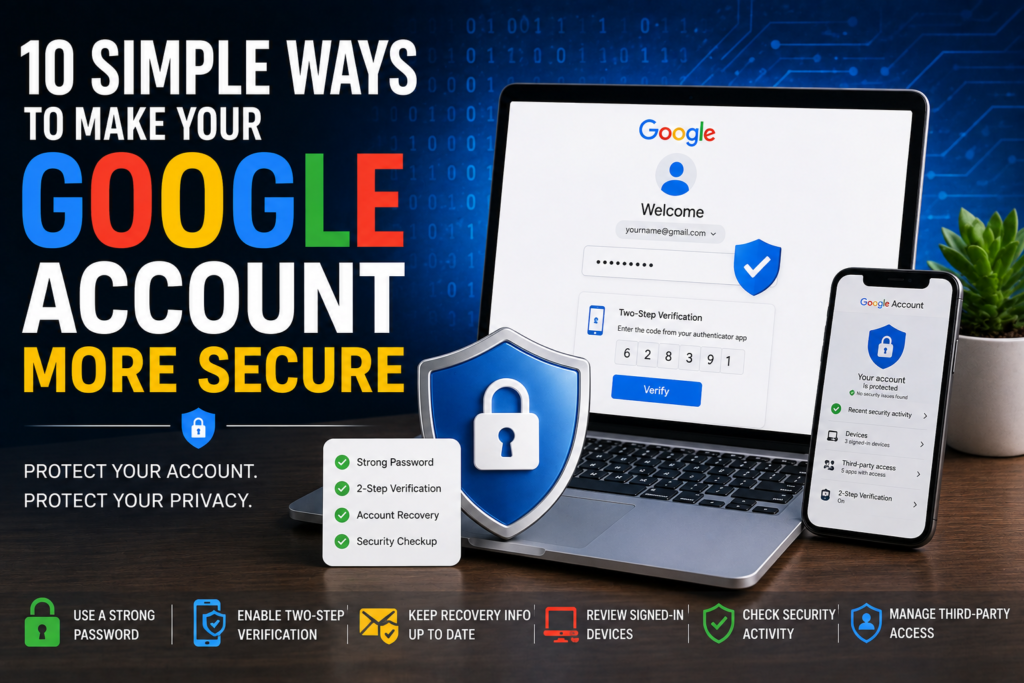
Your Google account is probably connected to more of your digital life than you realise. Gmail, Google Drive, Photos, YouTube, contacts, saved passwords, documents, and other services may all be linked to the same account.
That makes your Google account an important target for cybercriminals.
The good news is that you don’t need advanced technical knowledge to improve your account security. A few simple settings and better online habits can significantly reduce the risk of someone gaining unauthorized access.
Here’s how to secure your Google account properly.
1. Use a Strong and Unique Password
Your password is the first line of defence.
Avoid using simple passwords based on your name, birthday, phone number, or other information that someone could easily guess. More importantly, don’t reuse your Google password on other websites.
If another service suffers a data breach and your password is exposed, attackers may try those same credentials on your Google account.
Use a long, unique password that you don’t use anywhere else.
If remembering passwords is difficult, a reputable password manager can help you create and store unique passwords securely.
2. Turn On Two-Step Verification
One of the most important things you can do to protect your Google account is enable two-step verification (2SV).
With two-step verification, signing in requires more than just your password. Depending on your account and settings, Google may use prompts, authentication methods, security keys, or other verification options.
This provides an additional layer of protection if your password is ever compromised.
Don’t wait until your account is attacked. Turn it on now.
3. Add Recovery Information
Your recovery phone number and recovery email can help you regain access if you forget your password or someone attempts to take over your account.
Make sure your recovery information is current and belongs to you.
It’s particularly important to keep these details updated if you’ve changed your phone number or stopped using an old email address.
4. Check Where You’re Signed In
Do you know how many devices currently have access to your Google account?
Google allows you to review devices and sessions associated with your account.
Look for devices you don’t recognise or no longer use. If something looks suspicious, investigate it and sign out where appropriate.
This is a simple security check that many people forget to perform.
5. Review Recent Security Activity
Your Google account can provide information about recent security-related activity.
Regularly checking this activity can help you spot unusual sign-ins, password changes, or other actions that you don’t recognise.
If you see something suspicious, don’t ignore it.
Change your password and review your account’s security settings immediately.
6. Be Careful With Phishing Emails
Even a strong password won’t help much if you voluntarily give it to a scammer.
Phishing attacks often use fake emails or websites designed to look like legitimate services. A message may claim that your account has been locked, your payment failed, or you need to verify your identity.
Before clicking a link, stop and look carefully.
Check the sender, destination of the link, and the wording of the message. If you’re unsure, open Google’s website directly instead of following a link in an unexpected email.
Never share your password or verification codes with someone who contacts you unexpectedly.
7. Don’t Share Verification Codes
Verification codes are designed to prove that you are the person trying to access an account.
If someone asks you to send them a Google verification code, treat it as a major warning sign.
A scammer may already know your email address and password and be trying to complete the login using a code sent to you.
Keep verification codes private.
8. Review Third-Party App Access
Over time, you may connect your Google account to dozens of websites and applications.
Some services may have permission to access certain information from your Google account.
It’s worth reviewing these connections regularly.
Remove access for applications you no longer use or don’t recognise. The fewer unnecessary connections your account has, the easier it is to manage your digital security.
9. Protect Your Google Account on Your Phone
Your phone may provide access to your Google account without requiring you to enter your password every time.
That’s convenient, but it also means physical device security matters.
Use a strong screen lock, fingerprint authentication, or another secure method supported by your device.
Avoid leaving your phone unlocked in public places, especially if it contains sensitive emails, documents, photos, or financial information.
10. Keep Your Devices Updated
Account security isn’t only about your Google settings.
Your phone, computer, browser, and apps should also be kept updated.
Software updates often include security fixes that address known vulnerabilities. Enable automatic updates where practical and avoid using outdated software for important accounts.
11. Be Careful With Public Computers
Avoid signing into your Google account on unfamiliar or shared computers whenever possible.
If you absolutely need to use one, be extremely careful about saving passwords, downloading files, or leaving your account signed in.
Always sign out when you’re finished and avoid accessing particularly sensitive information from computers you don’t control.
12. Don’t Ignore Security Alerts
Google may notify you when something unusual happens with your account.
For example, you may receive an alert about a new sign-in, password change, or other security event.
Don’t automatically dismiss these notifications.
If the activity was yours, there’s usually nothing to worry about. If you don’t recognise it, investigate immediately.
13. Consider Using a Passkey
Passkeys are becoming an increasingly popular alternative to traditional passwords.
They can use your device’s built-in security features, such as a fingerprint, face recognition, or device PIN, to authenticate you.
When supported and properly configured, passkeys can make account sign-ins both convenient and resistant to many common phishing techniques.
If Google offers a passkey option for your account and you’re comfortable using it, it’s worth considering.
Google Account Security Checklist
You don’t need to change everything at once. Start with these essential steps:
✓ Use a unique, strong password
✓ Enable two-step verification
✓ Keep recovery information updated
✓ Review signed-in devices
✓ Check recent security activity
✓ Remove unused third-party access
✓ Never share verification codes
✓ Watch out for phishing
✓ Keep your devices updated
✓ Use a secure screen lock
✓ Consider using passkeys
✓ Pay attention to Google security alerts
What If You Think Someone Has Access to Your Google Account?
If you notice suspicious activity, act quickly.
Start by changing your Google password from a trusted device. Then review your signed-in devices, security activity, recovery information, and third-party access.
Also check your Gmail account for unfamiliar forwarding rules or filters. An attacker who gains access to an email account may try to maintain access or hide certain messages.
If you believe your account has been compromised, use Google’s official account recovery and security tools rather than links sent to you through suspicious messages.
Final Thoughts
Your Google account can contain years of personal information, important conversations, photos, documents, and access to other online services. Protecting it should be a priority.
The best Google account security strategy isn’t complicated. Use a unique password, enable two-step verification, keep recovery information updated, review account activity, and stay alert for phishing attempts.
Security isn’t something you set up once and forget about. Take a few minutes every few months to review your account settings and make sure everything still looks familiar.


pihfnyquxzkntyhndhsroyxpojdtgu